Quick start
After you install Hyper Search, complete these steps to launch it on your storefront.
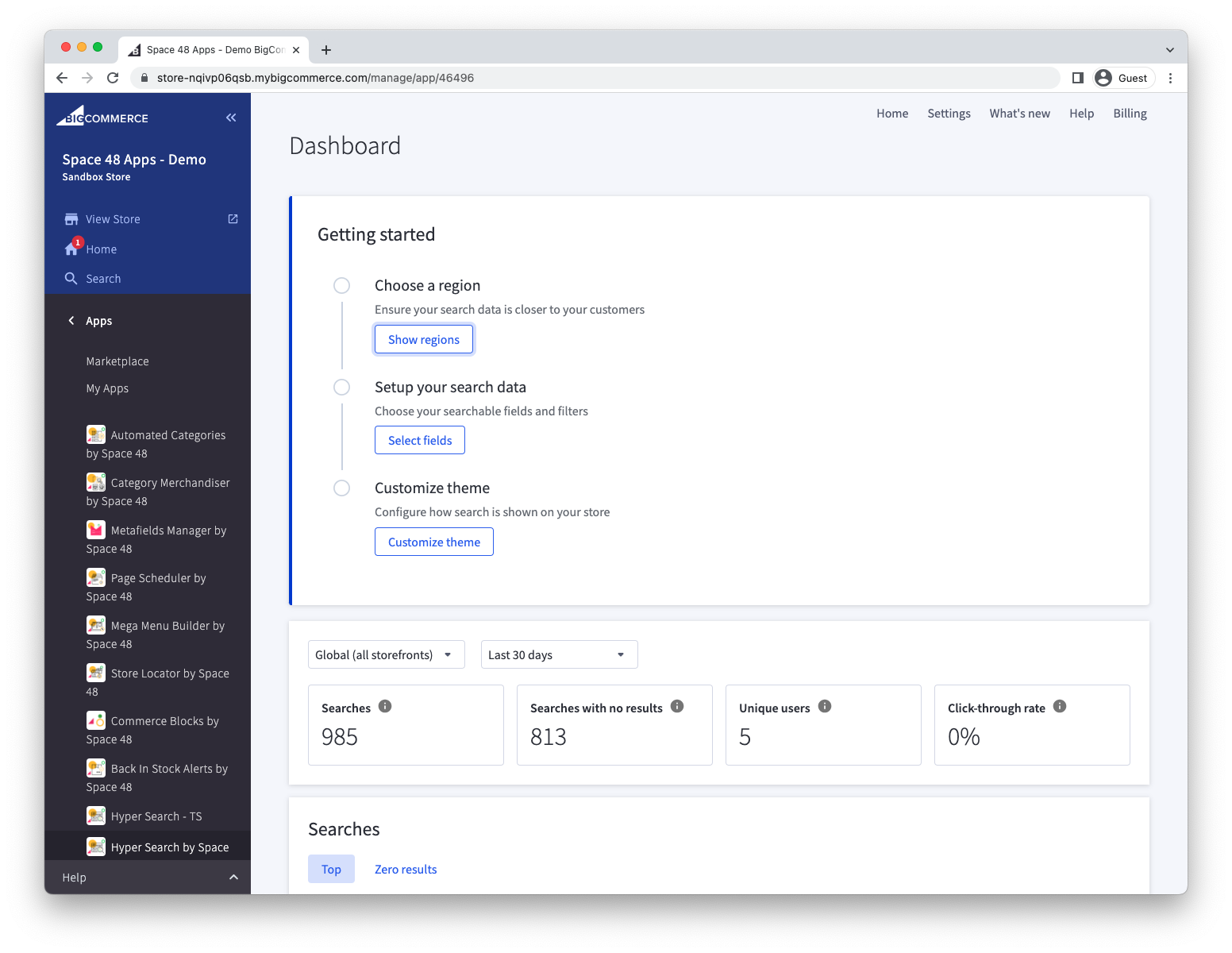
1. Choose a region
Hyper Search has infrastructure in Europe, America and Australia. Choose the region closest to most of your customers to minimise search latency.
You cannot change the region after selecting it. If you are unsure which region to use, contact support before continuing.
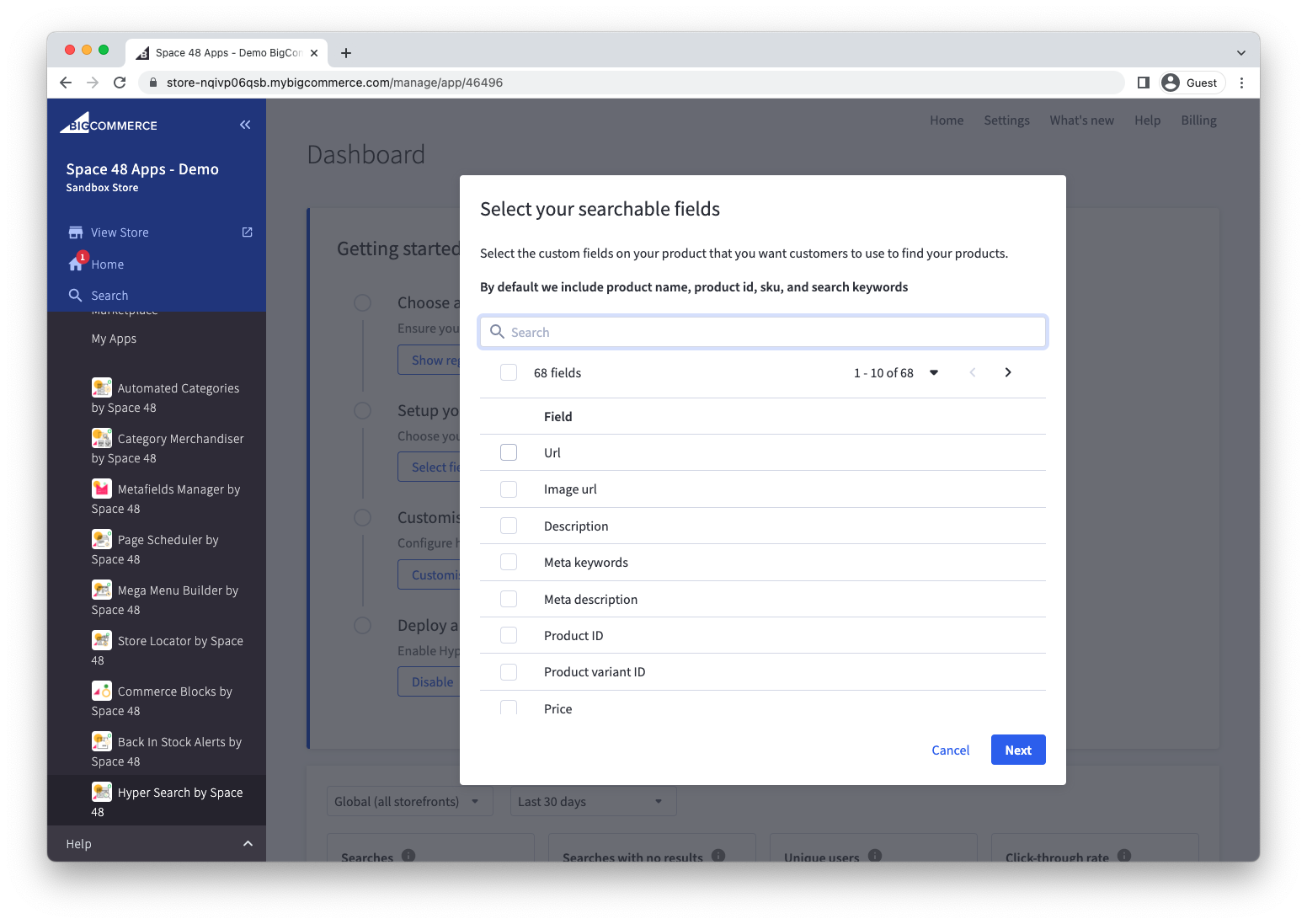
2. Confirm searchable fields and filters
Choose which product fields Hyper Search should index and search.
You can configure custom fields to be searched but it will take a moment to find these fields after installation.
Then choose which fields customers can use as storefront filters.
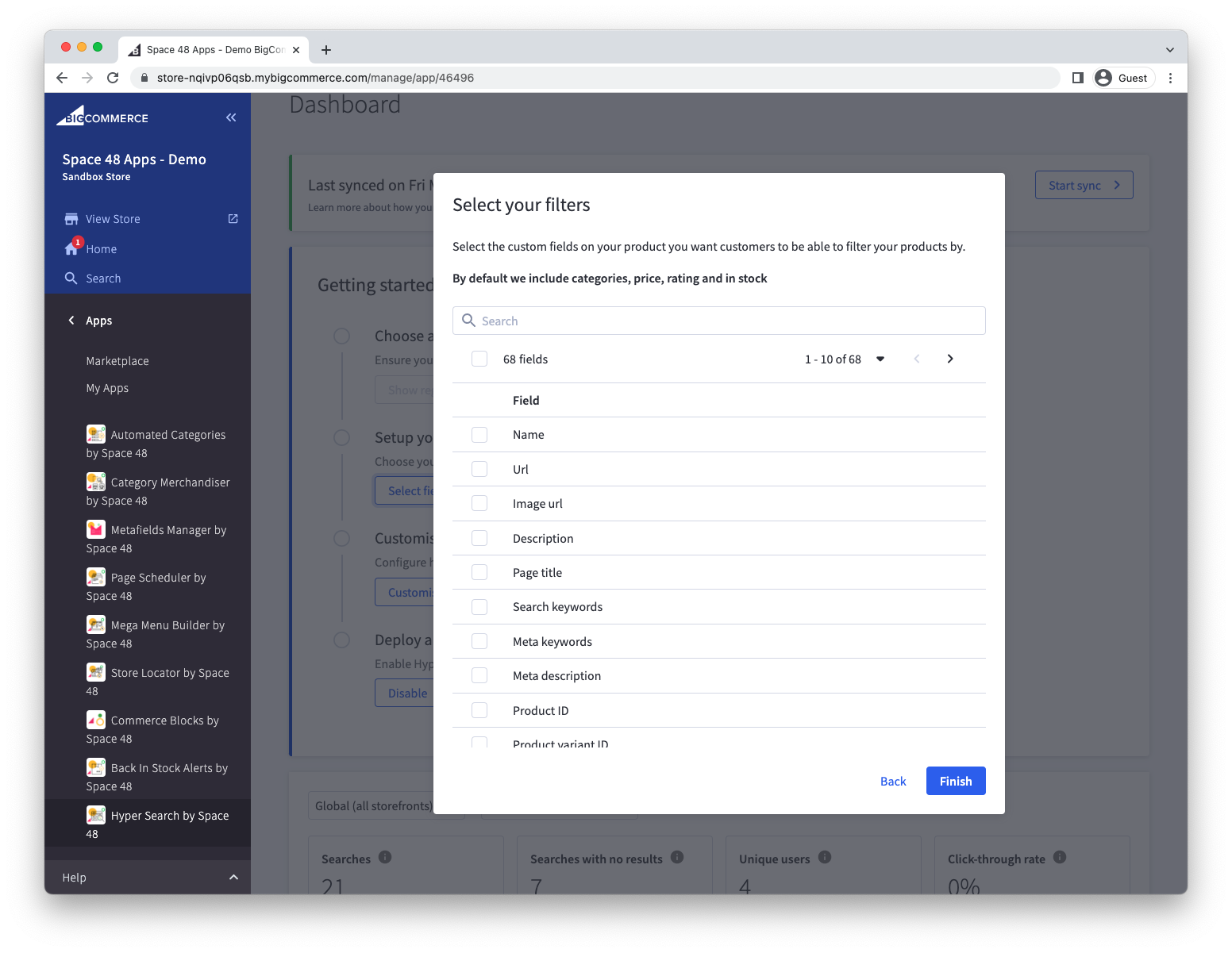
To review or find more search settings, go to Settings > Search.
3. Integrate with your theme
We provide an out-of-the-box search experience. To get set up with this, there is just a small modification needed to your theme files. See Adding Hyper Search to your site.
Once that is complete, you will need to enable the storefront integration in Settings > Storefront. You can also review other design options and settings here.
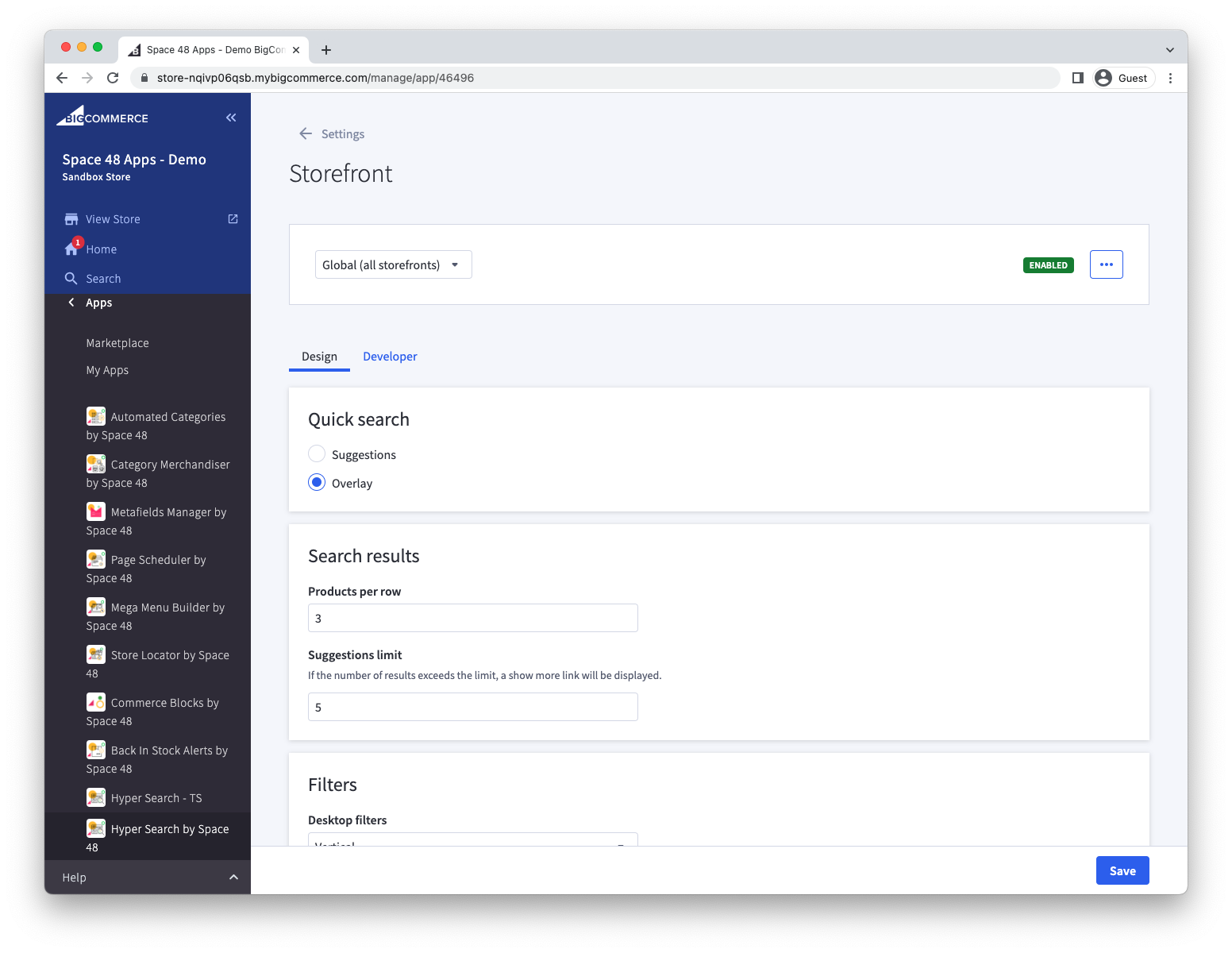
You can also create your own search experience by implementing our APIs.
4. Preview and enable search
Once you've chosen a region and configured settings, Hyper Search will sync all products from your BigCommerce store.
You can then use the Preview to try out the search within the app before enabling it on your storefront.
Open Settings > Preview.
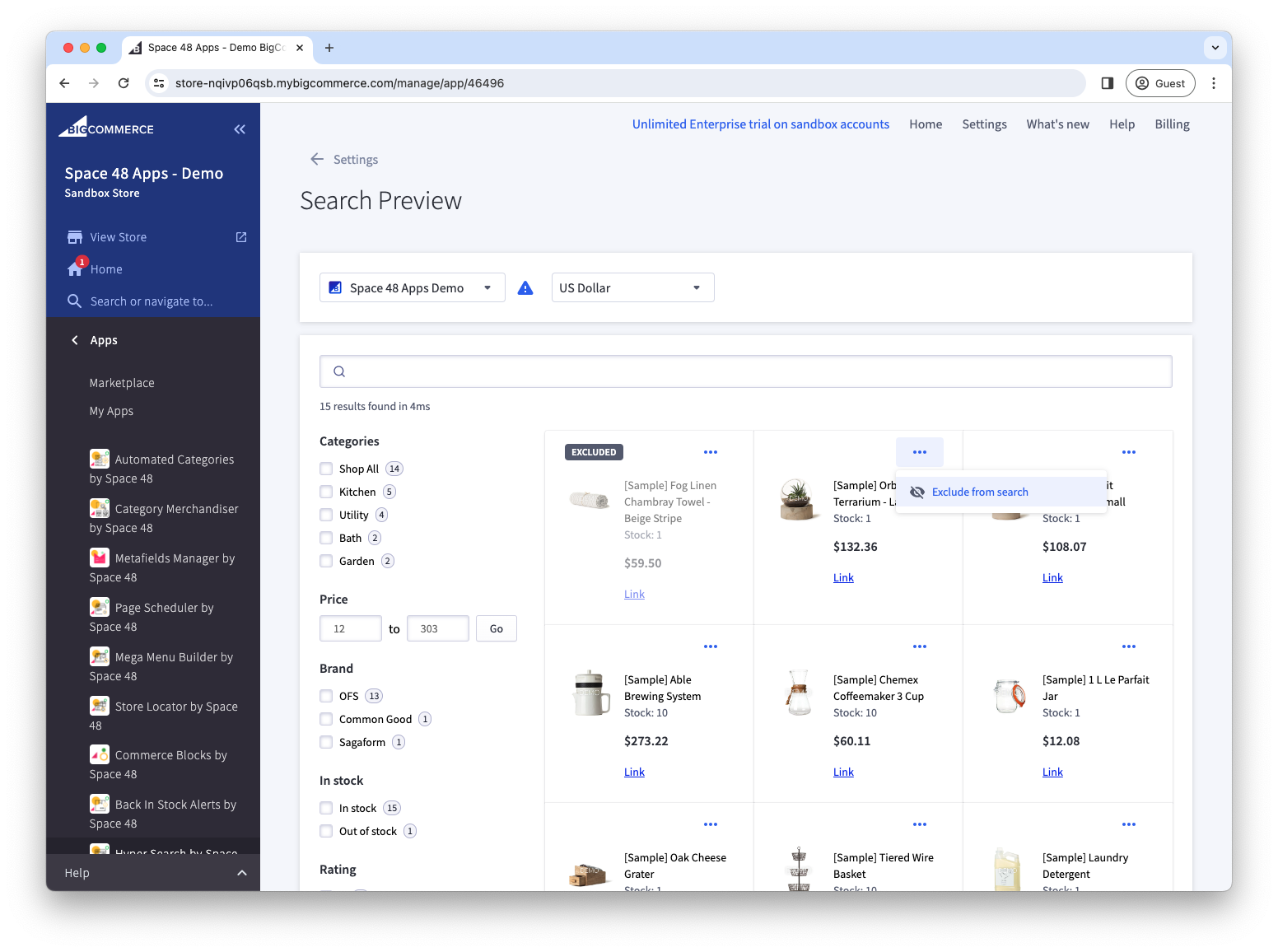
When the results and design are ready, go to Settings > Storefront and enable Hyper Search. Your storefront should now use the configured search experience.