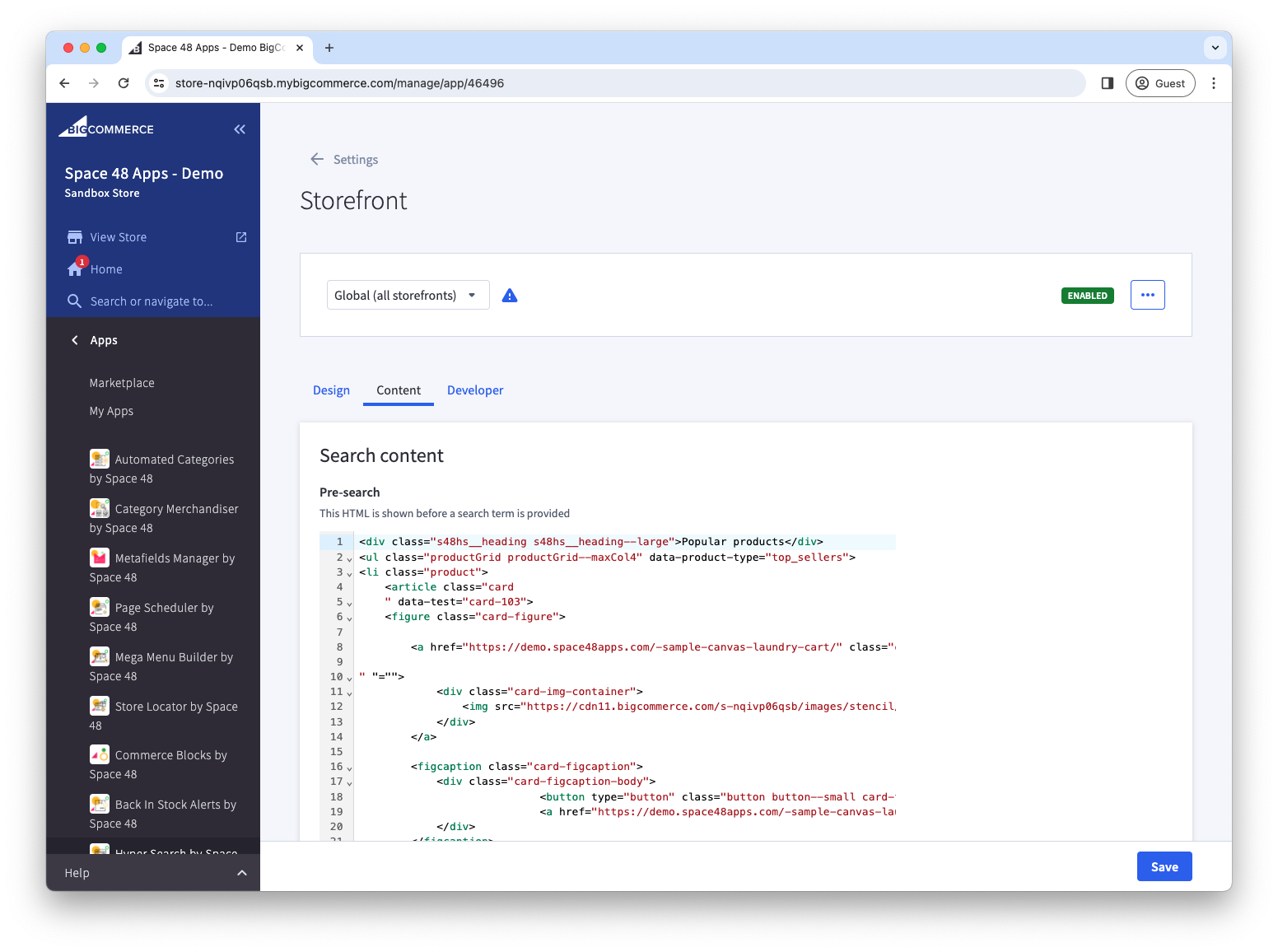
Customise the design
After you add Hyper Search to your site, open Settings > Storefront to customise the storefront experience.
Choose autocomplete or instant search
We provide two search-as-you-type experiences to choose from. The first is the traditional search which shows autocomplete suggestions as you type and the customer is taken to the search results page.
We also provide an "Overlay" design option which provides a search results page-like experience, all within an overlay without navigating to a new page.
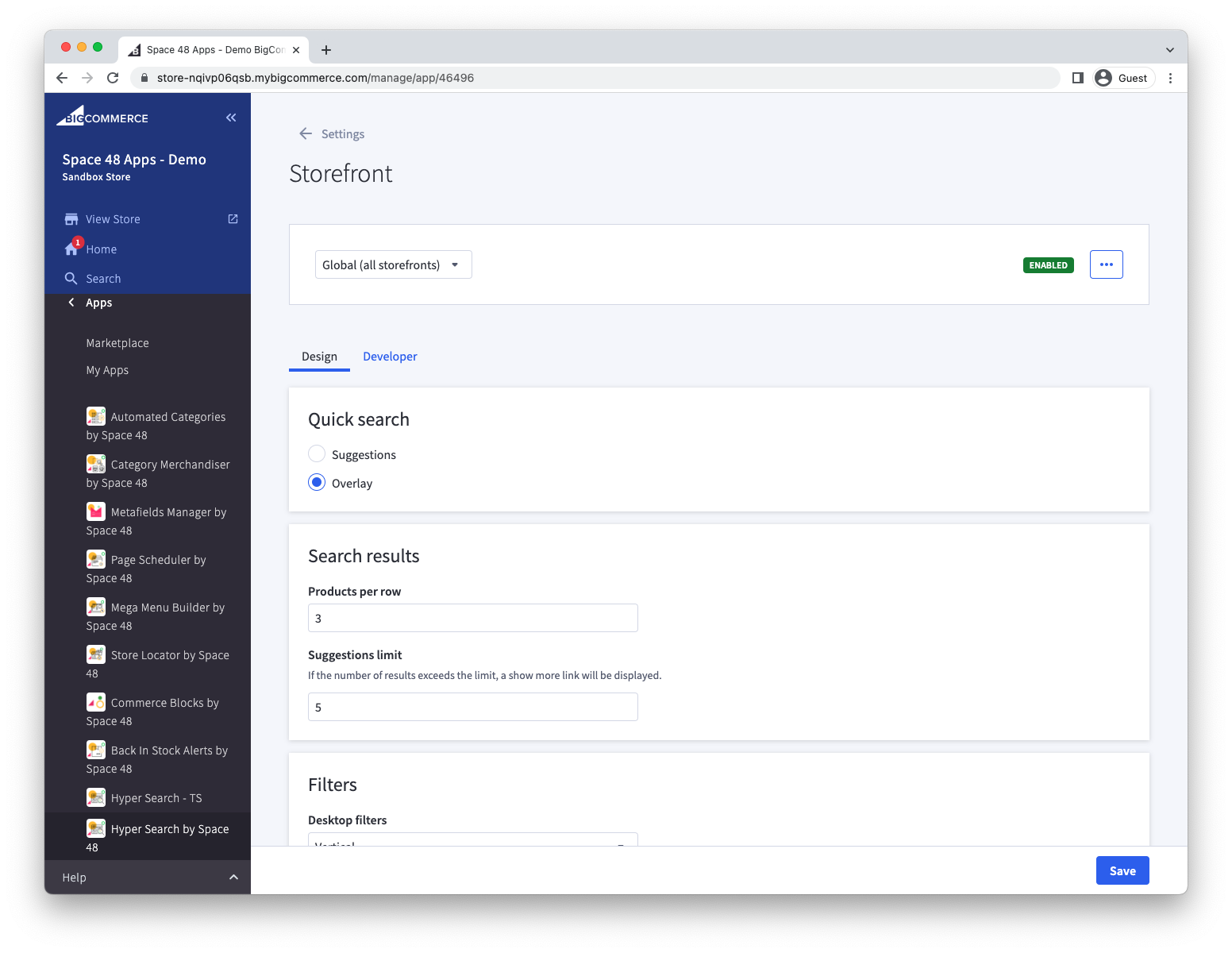
Design options
The following design settings do not require theme code changes.
Search results
Change the number of products per row in search results, and the number of suggestions that are shown in the search autocomplete.
Filters
You can choose whether filters on desktop devices are shown horizontally above search results or vertically in a left-hand sidebar. Also, you can choose whether filters are visible or collapsed on mobile.
For categories, we recommend the Tree option: when a customer chooses a category filter, any sub-categories are then shown so that they can further narrow their search.
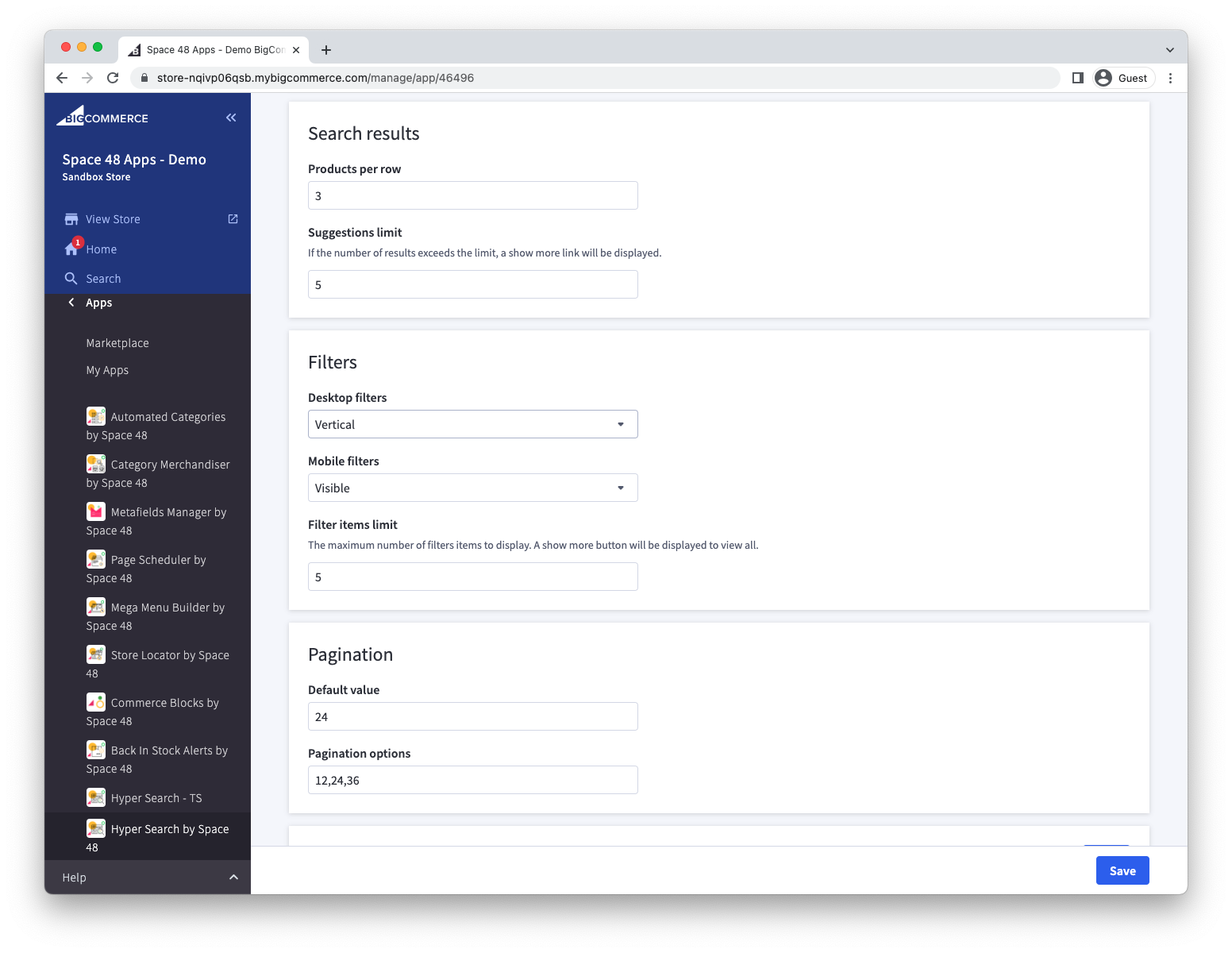
Pagination
You can choose the default number of products to show per page of results, as well as the other products per page options available for a customer to choose from on the storefront.
Sort orders
The most important sort order is Relevance, where the magic of Hyper Search comes from.
However, we also provide the ability for customers to change the sort order when browsing results, e.g. to see the lowest price or highest-rated products that match the search term and filters.
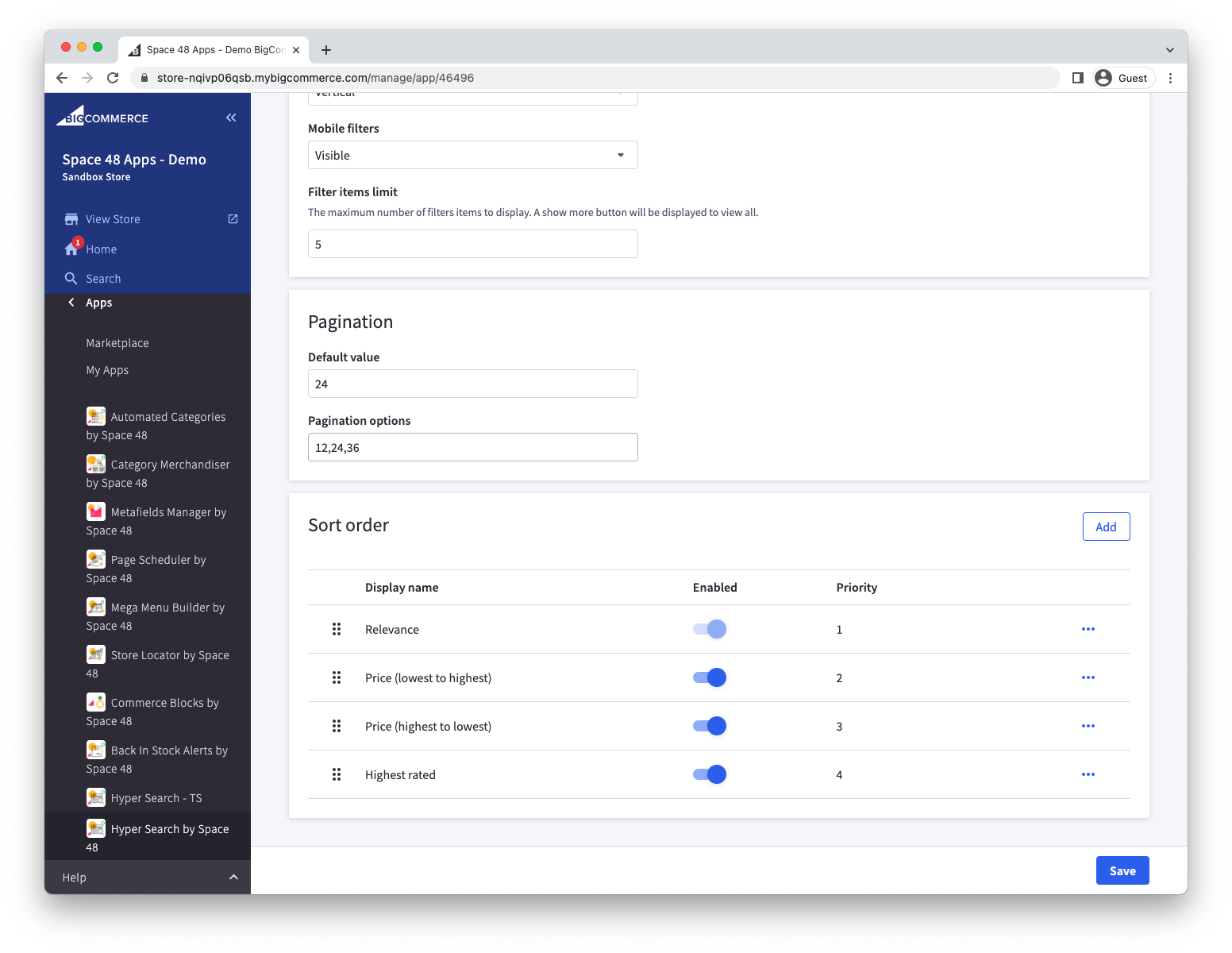
To add a new sort order, enter the name of the product field and the order the results should be displayed, separated by a colon.
For example:
price:ascreviews_rating_sum:descstock_qty:descname:asc
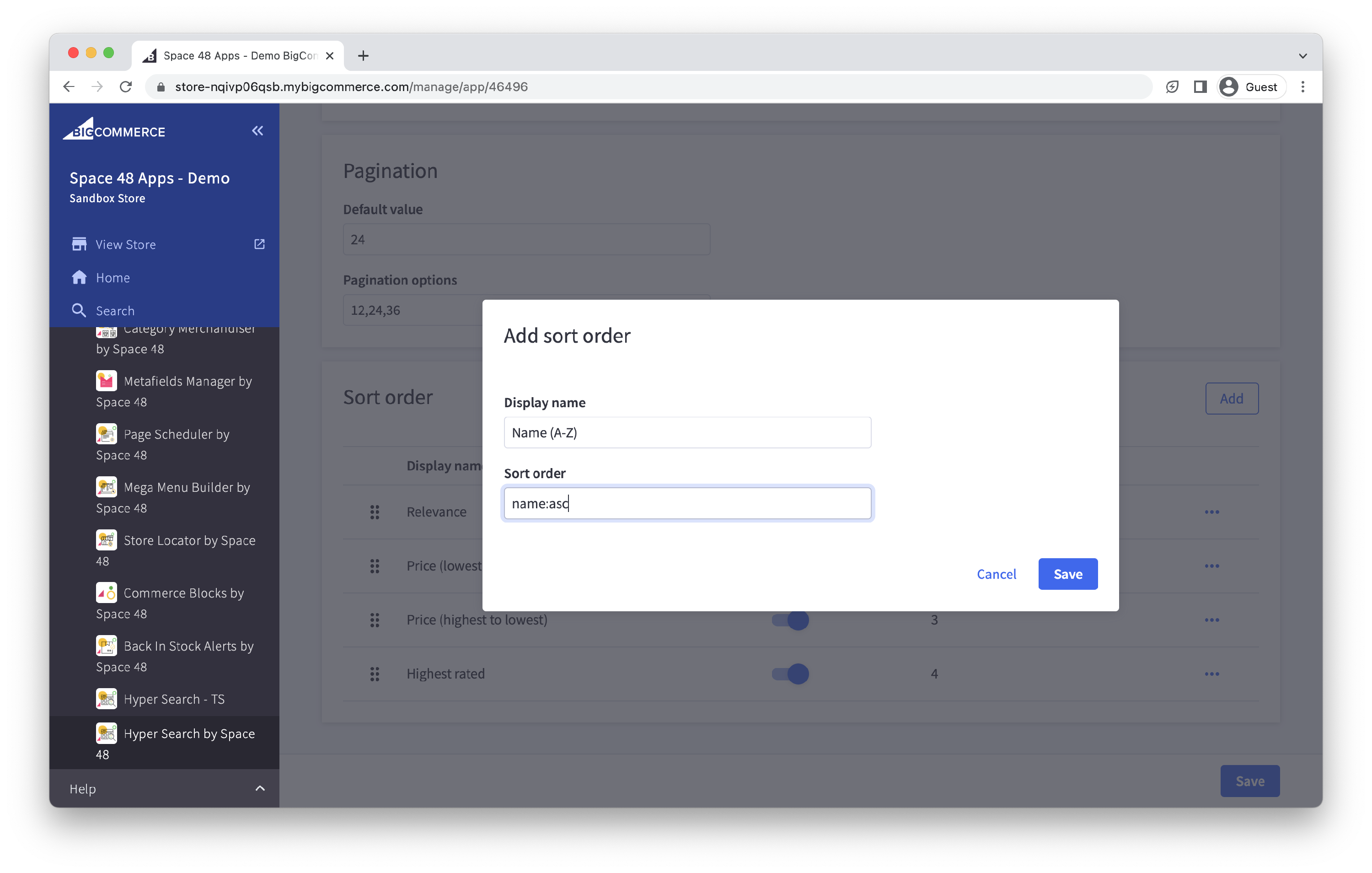
Sorting options
Hyper Search will automatically show the most relevant variant where possible. For example, searching "red t-shirt" will show the red variant and price.
When variants all have the same "relevance" score, you can control which variant should be considered the default by choosing a Secondary sort order.
To show the variant with the lowest price, use price:asc.
To show the most popular variant, use total_sold:desc.
Pre-search overlay content
Before any search term has been provided Hyper Search will display a list of popular searches and recent searches.
Additionally, you can use this space for marketing purposes by adding your own HTML to the Search Content field in Storefront > Settings.