Choose search filters
Once you have chosen your search fields, it's time to choose which fields should be available to filter search results on the storefront.
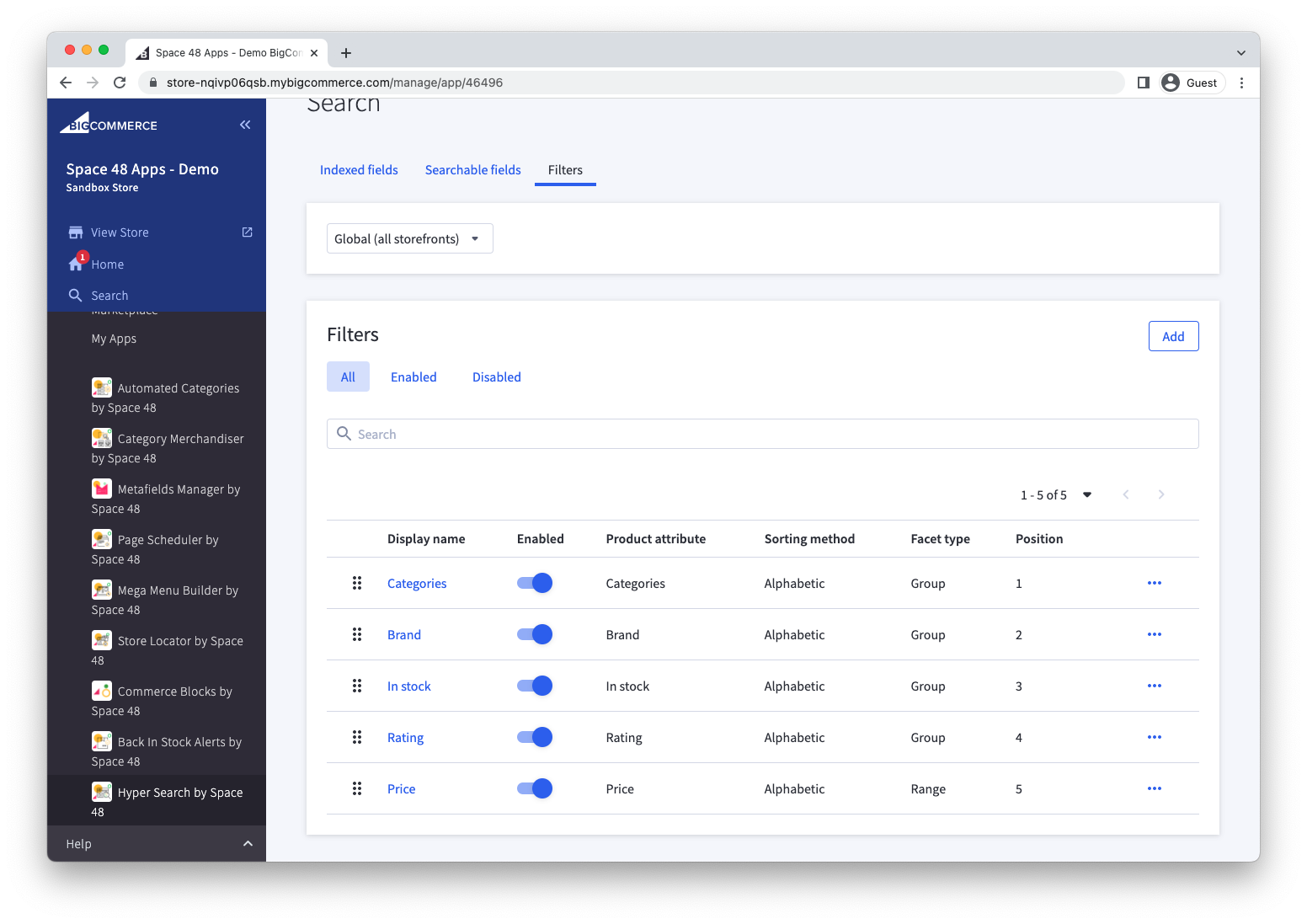
Add a search filter
- Select Add and search for the product field to use.
- Confirm that its data type is correct, such as
stringfor text orintfor a whole number. - Choose a facet type and storefront label.
- Save the filter.
Once a filter has been added or updated, it will automatically trigger a sync of product data from BigCommerce.
Creating a search filter will automatically mark this field as an indexed and searchable field.
Rename a filter
To change the display name of the filter on the storefront, edit the filter and update the display name.
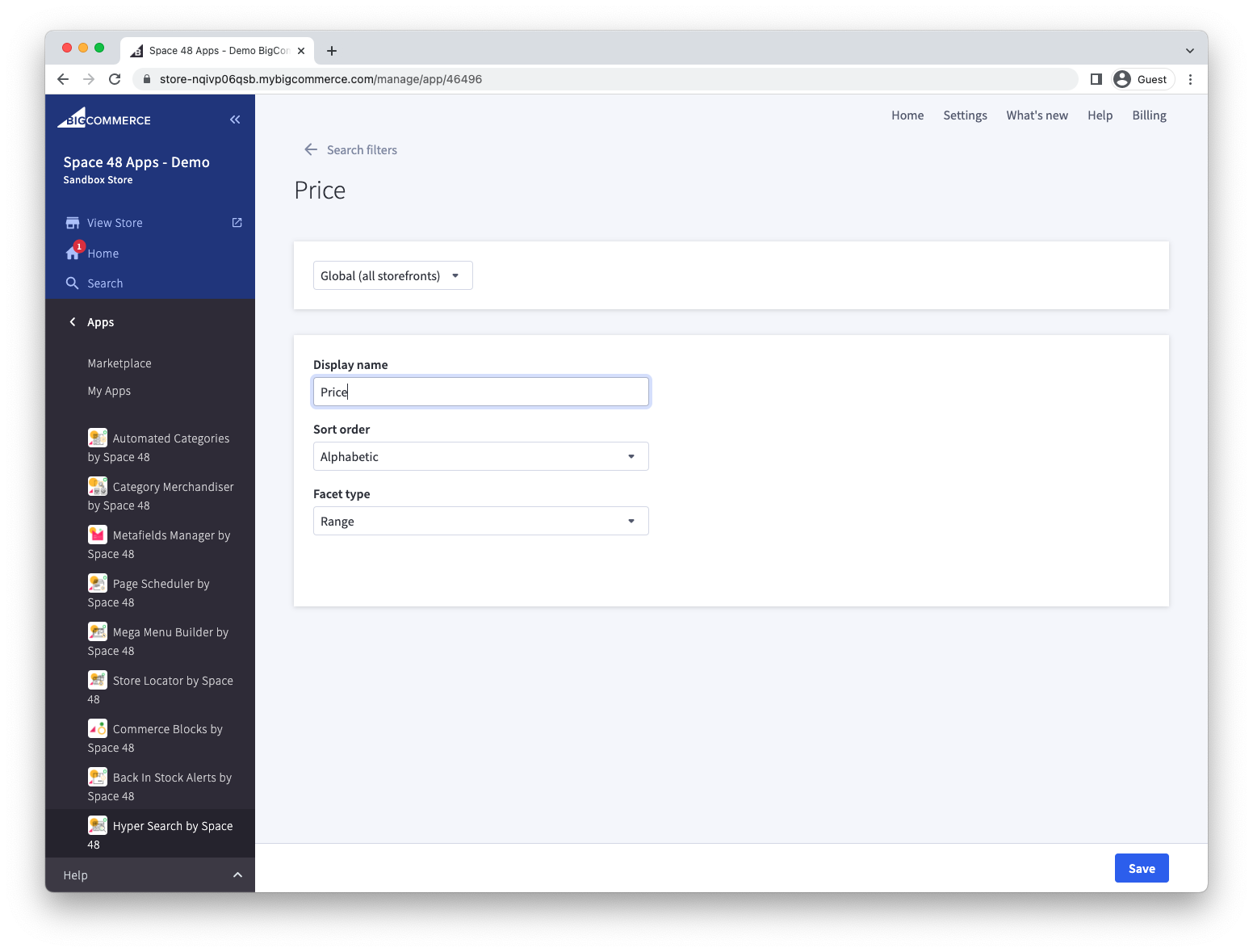
Change the order of filter options
By default, the available options for each filter are ordered alphabetically. If you instead would like them to be ordered by the number of results, edit the filter once added and update the "Sort Order" field to Count.
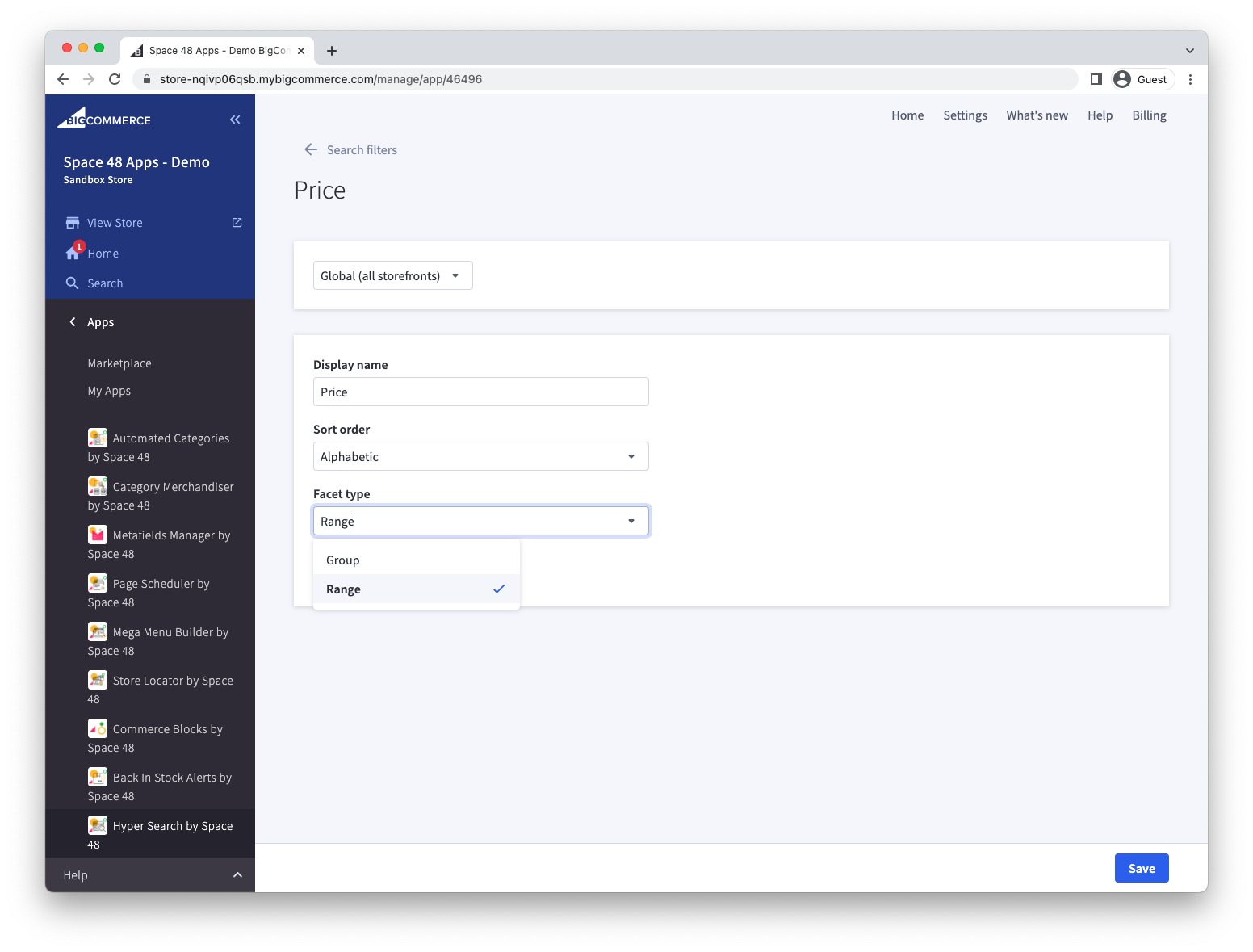
Change the filter type
By default, filters are a list of discrete options using the Group facet type. For a continuous value such as price, edit the filter and choose Range.
Reorder filters
When viewing the list of filters, you can click to hold on and then drag and drop a filter to change the display order on the storefront.